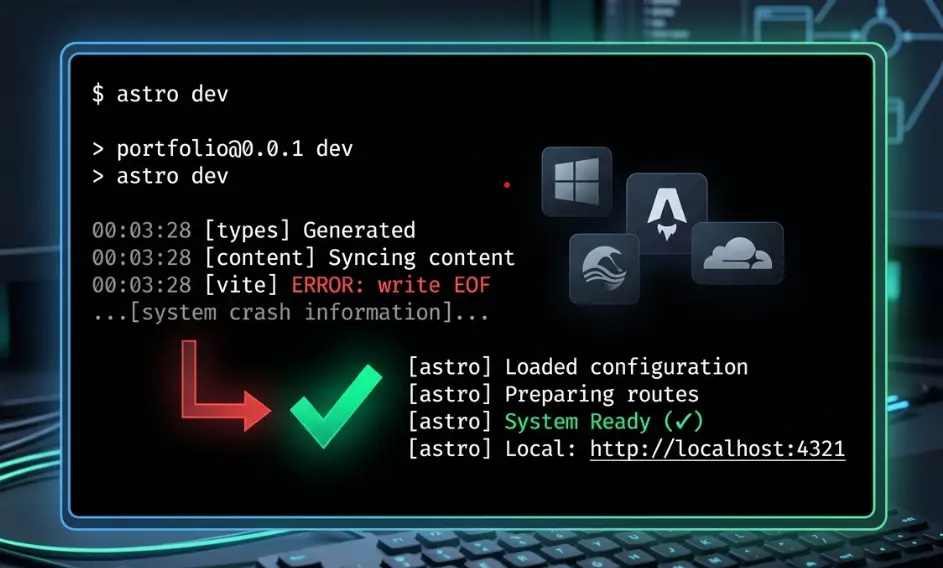
The Problem: The Infamous “write EOF” Error
If you are developing a full-stack Astro app on Windows and trying to use the Cloudflare adapter, you’ve likely run into this frustrating crash during pnpm run dev:
[ERROR] [@astrojs/cloudflare] An unhandled error occurred while running the "astro:server:setup" hook
write EOF
Stack trace:
at WriteWrap.onWriteComplete [as oncomplete] (node:internal/stream_base_commons:87:19)
This error is cryptic because it doesn’t tell you what failed to write. In reality, Astro is trying to spawn the Cloudflare workerd runtime (the engine that runs Workers locally), and that process is crashing instantly because it’s missing core Windows system files.
Step 1: Install Visual C++ Redistributables (The “Real” Fix)
The most common reason for this crash is that workerd requires specific C++ runtime libraries to execute on Windows. If these aren’t installed, the process dies, and Node.js throws a write EOF because the pipe it was talking to disappeared.
- Download the X64 version of the Microsoft Visual C++ Redistributable.
- Install it and restart your computer.
- Alternative: If you prefer the command line, run this in the powershell:
winget install Microsoft.VisualStudio.2022.BuildTools --override "--wait --quiet --add Microsoft.VisualStudio.Workload.VCTools"
Step 2: Fix the Cloudflare Adapter Config
By default, the @astrojs/cloudflare adapter tries to enable Astro Sessions using a KV namespace named SESSION. If this isn’t in your wrangler.toml or wrangler.json, you’ll see “Invalid binding” warnings.
If you don’t need sessions, you can ignore the warning, but for a clean setup, ensure your wrangler.json has these essentials for D1 and Node compatibility:
{
  "compatibility_flags": ["nodejs_compat"],
  "compatibility_date": "2024-04-03",
  "d1_databases": [
    {
      "binding": "DB",
      "database_name": "your-db-name",
      "database_id": "your-id",
      "remote": true
    }
  ]
}
Step 3: Run in the Correct Environment
Windows terminal choice matters. Git Bash often struggles with the way Wrangler handles internal streams and TTY.
- Do: Use standard Command Prompt (CMD) or PowerShell.
- Don’t: Use Git Bash or old versions of Mintty.
Summary Checklist
| Action | Why? |
|---|---|
| Install VC++ Redist | Provides the DLLs workerd needs to run. |
| Restart Windows | Ensures the new system paths are active. |
| Wrangler Login | Required if you use remote: true for D1. |
| Use CMD/PowerShell | Avoids stream-handling bugs in Git Bash. |
Fixed! Your pnpm run dev should now start perfectly, giving you a local environment that actually matches your production Cloudflare Worker.